Monday, September 19, 2011

How To Use Sniperspy To Hack Passwords

SniperSpy is the industry leading Remote password hacking software combined with the Remote Install and Remote Viewing feature.Once installed on the remote PC(s) you wish, you only need to login to your own personal SniperSpy account to view activity logs of the remote PC’s! This means that you can view logs of the remote PC’s from anywhere in the world as long as you have internet access! Do you want to Spy on a Remote PC? Expose the truth behind the lies! Unlike the rest, SniperSpy allows you to remotely spy any PC like a television! Watch what happens on the screen LIVE! The only remote PC spy software with a SECURE control panel! This Remote PC Spy software also saves screenshots along with text logs of chats, websites, keystrokes in any language and more. Remotely view everything your child, employee or anyone does while they use your distant PC. Includes LIVE admin and control commands!


SniperSpy Features:
1. SniperSpy is remotely-deployable spy software
2. Invisibility Stealth Mode Option. Works in complete stealth mode. Undetectable!
3. Logs All Keystrokes

4. Records any Password (Email, Login, Instant Messenger etc.)

5. Remote Monitor Entire IM Conversations so that you can spy on IM activities too
6. Captures a full-size jpg picture of the active window however often you wish
7. Real Time Screen Viewer
8. Remotely reboot or shutdown the PC or choose to logoff the current Windows user
9. Completely Bypasses any Firewall
What if i dont have physical acess to victims computer?

No physical access to your remote PC is needed to install the spy software. Once installed you can view the screen LIVE and browse the file system from anywhere anytime. You can also view chats, websites, keystrokes in any language and more, with screenshots.
This software remotely installs to your computer through email. Unlike the other remote spy titles on the market, SniperSpy is fully and completely compatible with any firewall including Windows XP, Windows Vista and add-on firewalls.
The program then records user activities and sends the data to your online account. You login to your account SECURELY to view logs using your own password-protected login. You can access the LIVE control panel within your secure online account.
Why would I need SniperSpy?
Do you suspect that your child or employee is inappropriately using your unreachable computer? If yes, then this software is ideal for you. If you can’t get to your computer and are worried about the Internet safety or habits of those using it, then you NEED SniperSpy.
This high-tech spy software will allow you to see exactly what your teenager is doing in MySpace and elsewhere in real time. It will also allow you to monitor any employee who uses the company computer(s).

How To Protect Your Computer From USB Viruses

Here are few useful tips that can help you to protect your computer from USB Viruses.

1) FreeCommander

When user double clicks on theUSB drive files pointed by the autorun.inf got executed which copies the virus files on your system.So , you should open your USB drive through FreeCommander , it’s file explorer like windows explorer.

Download FreeCommander

2) Windows Feature Autorun

Mostly USB viruses contains autorun.inf and .bat file or similar . Autorun is windows feature which automatically initiates inserted usb or cd/dvd . For example , below is simple autorun.inf file that will launch program called launch.bat , launch.bat can be virus
[autorun]
open=launch.bat
ACTION= Perform a Virus Scan
So, to protect your computer from usb threats I suggest you to disable autorun feature.

How To Disable Autorun Feature Manually

1) Go to Run > type gpedit.msc

2) Under User configuration expand Administrative templates and select Windows Components..

3) Go to Autoplay Polices

4) Double click on Turn off autoplay

5) Select the radio button Enable- > Click ok

3)Protect Your USB Drive From Virus With Dummy Files

To prevent virus attacks to your PC, you must make your USB storage device free from virus as well which are most of the time plug and played to your PC. Usually, most of the virus and worms copies to your USB drive easily. No matter what you do, you cannot stop this action form virus when you insert your USB drive to infected computer. But to prevent from un-authorized copying of viruses you can make your USB storage device completely full so that no more files can be added to it. But filling up the storage device will not be practical as you have to add some heavy contents there and you won’t like to put large contents which will often hectic job. But after following this tutorial you’ll feel easier to do that.

4) Scan USB devices with antivirus

It’s a good idea to scan usb devices with updated antivirus software’s . I recommend “USB Virus Scan” software , you can purchase this extremely helpful software this link.If you don’t have money for this software , check my previous article Best Free Antivirus Software . there you’ll find some good free antivirus.

5)USB Write Protector

These viruses tend to copy themselves to the flash drive whenever system detected new device plug in. I still remember there are some old USB drives that come with write protect feature. But unfortunately most of the new flash drive don’t come with such feature, maybe the manufacturers want to cut down the cost?
So, the only way to protect our USB flash drive is enable the write protect through our own PC. With USB Write Protector, you can turn on/off the write protect to a USB flash drive.

Download USB Write Protector

All My Desktop Icons Turned Into Word Files?

Yesterday I noticed that all of my desktop icons turned into word files, when I try to go to any of them, it just initiates the Word program and opens as a text file in the Word format. I’ve no idea what happened to get here , it looks as problem with shortcut associations , but I found solution to fix it . So , if you have same problem follow instructions bellow.


1) Download lnkFix.txt
2) Open lnkFix.txt in notepad and Save As IconsFix.reg


3)You should now have an icon like this on your desktop . Double click on icon


4) Restart your computer.

Thursday, September 8, 2011

5 little-known Gmail tips and tricks


Think you've mastered your Gmail? Here are five Gmail tips and tricks that you may not know about:

Tip 1: Select multiple messages
Tired of clicking individual messages but don't want to select all of them? Select the first message in the set, hold the shift key, then select the last message of the set.
Gmail shift-click
Select a set of messages with shift-click.
(Credit: Screenshot by Rohan Singh)

Tip 2: Bypass the blank message prompt
Do you send messages where the subject is the entire message? Then you're familiar with the prompt asking you if you're sure you want to send the message without text in the body. To bypass the prompt, type "EOM" or "(EOM)" at the end of the subject to tell Gmail that it's the end of message.
Gmail EOM in subject (Credit: Screenshot by Rohan Singh)

Tip 3: Use address aliases
Gmail doesn't offer traditional e-mail aliases, but you can add a "+" to the end of your username to create one. For example, messages sent to username+alias@gmail.com is sent to username@gmail.com. This can be useful for setting up filters or figuring out who's selling your e-mail address to spammers.

Tip 4: Dots or no dots, it's your username
Did you know that Gmail doesn't recognize dots as characters within a username? That means that if your e-mail address is username@gmail.com, then user.name@gmail.com and u.s.e.r.n.a.m.e@gmail.com are also yours.

Tip 5: Send & Archive at once
If you send messages and immediately archive the conversation, you can save yourself a step by adding a Send & Archive button. Go to the Labs section of your Mail Settings and enable the Send & Archive button.
Gmail Send & Archive button (Credit: Screenshot by Rohan Singh)

So, how many of these tips and tricks did you already know?

How to restore deleted Gmail contacts


Google Contacts has plenty of room for storing the addresses and information for all your friends and business associates. Unfortunately, it isn't too choosy about who it adds, leaving you with info you didn't plan on keeping around. So you start deleting contacts and suddenly delete the wrong one from your address book. Luckily, Gmail Contacts has a restore feature nestled into one of its "more actions" menus.

Step 1: Log in to Gmail and click on Contacts in the top left corner.

(Credit: Screenshot by Rohan Singh)


Step 2: Click on the "More actions..." menu, just above your first contact and toward the right.

(Credit: Screenshot by Rohan Singh)


Step 3: Click on "Restore contacts..." and choose a time frame within the last 30 days, then click "Restore."

(Credit: Screenshot by Rohan Singh)


Your deleted, merged, and edited contacts will all be restored to the point in time that you chose. You can now edit each of them like you would have before deletion.

How to access Gmail offline


Google has been on-again, off-again with providing its Gmail users with offline access, but today it announced a new, HTML5-based solution for people who need to manage their inbox off the grid.
After months of testing, Google is rolling out offline access for Docs, Calendar, and Gmail. While Docs and Calendar aren't immediately available, Chrome users can enable Gmail offline right now. Here's how:

(Credit: Official Google Blog)

  1. Head to the Chrome Web Store and install the new Offline Gmail app. Once installed, open a new tab and launch the app.
  2. You'll be asked to allow offline mail storage. This is important: if you approve, your inbox data will be stored on the computer you're using--do not allow offline mail storage on a public computer. If you allow, Offline Gmail will launch and start backing up your inbox.
When you're offline, simply launch Chrome and head to the Offline Gmail app. You'll be able to write e-mails, respond, read, apply labels and stars, and archive messages. Once you reconnect to the Internet, the messages you composed offline will be sent.
A few things to note:

  • Depending on how much e-mail you have, Offline Gmail will store three to seven days worth of messages and all starred e-mails. So if you need a specific older e-mail available offline, be sure to star it.
  • If you'd like to delete your offline inbox from the computer you installed it on, you can. In the Chrome address bar, type chrome://settings/cookies and press Enter. Then, search for "mail.google.com." Hover over all the search results and click the "X" to delete them.
  • Uninstalling the Chrome app alone will not remove offline data. 

Enable Save and Quit Option To Save Firefox Tabs Before Closing It


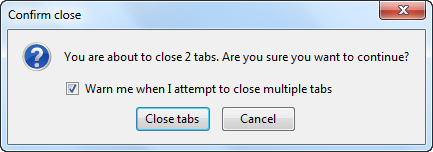
In the recent version of Firefox, the very handy feature of Save and Quit all open tabs is missing. If you have multiple tabs open, and you try to close Firefox, you only get a warning that your are closing all the tabs.
no save tabs options in firefox
How to enable Save and Quit tabs option in Firefox:
• Open a new tab, type about:config in it and press enter.
• Click I’ll be careful, I promise!.
• In the filter bar, type browser.showQuitWarning and press enter.
• The default value for this option would be false. Change its value to true.
That’s it. Now when you close Firefox with multiple tabs open, it will ask you if you want to Save and Quit the tabs before closing.
save and quit option to save firefox tabs
Note that if you are using Firefox 4+ on Mac OS X, then changingbrowser.showQuitWarning option will not enable the Save and Quit feature.
To save tabs when closing Firefox on Mac OS X, don’t close it with the close button on the top left corner of window. Instead press Command + Q and Firefox will show you the Save and Quit dialog automatically.

Disable a Windows Service From Command Prompt


You already know how to disable a Windows service from the service manager. But if you know the name of the service that you want to disable, then you can also disable it from command prompt.
To do so, open command prompt as an administrator, and use this command.
sc config serviceName start= disabled
Note that you must use the service name exactly as its specified on the properties dialog of the service.
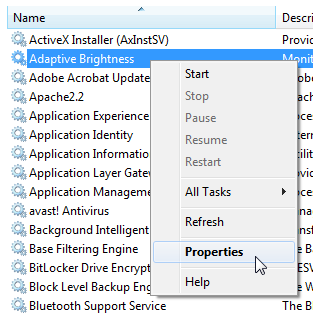
To find the name, type services.msc in the start menu search box or run dialog to start the service manager in Windows. Right click on the service you want to disable and choose properties. You can find the service name on top of the dialog box.
disable windows service from command prompt
This method is only useful if you already know the exact name of the service that you want to disable. If you have to go to the service properties to find the name, then you might as well disable it from there, instead of using the command prompt.

How To Disable a Service in Windows 7


One of the best way to improve Windows 7 performance is by disabling unnecessary services running in the background. Once you identify useless services, you can safely disable or delete them.

Disabling a Service in Windows 7

• First start Windows 7 service manager. There are two ways to open it. Either go to Control panel > Administrative tools, and open Services, Or, type services.msc in the run dialog or start menu search box.
• Right click on the service that you want to disable and select properties.
service properties in windows 7
• In the startup type drop down box, select disabled. Then click the stop button to stop the service immediately.
disable service in windows 7
That’s it. You just disabled a service in Windows 7. You will not see this service running when you restart the computer.

How To Disable USB Drive (USB Port) in Windows 7


You may want to disable the USB port or disable the USB drive in Windows 7 for several reasons. For instance, if you run a software development company, you may want to disable the USB drive to prevent the data theft from employees.
If you don’t use USB drive much, then its a good idea to disable it to prevent any malware infection from a USB drive.
To disable USB port or USB drive in Windows 7, click on Start button, type regedit in the search box, and start the regedit program when you see it in the results.
In the regedit, navigate to this path in the left panel,
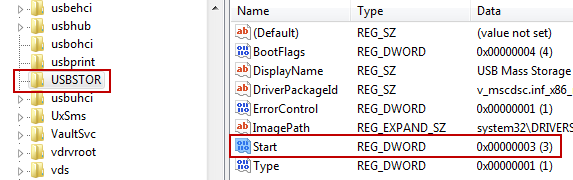
HKEY_LOCAL_MACHINE\SYSTEM\CurrentControlSet\Services\USBSTOR
disable usb port or drive windows 7
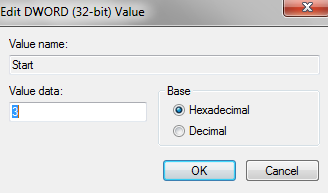
Now double click on the Start key in the left panel, and change its value to 4. This will disable the USB drive or USB port in your computer. To enable the USB drive again, change the value of this key to 3 again.
regedit to disable usb drive in windows
Note that if you don’t want to disable USB drive complete, you can still "stop any virus present in the USB drive when you connect it to your computer.

Trick to activate a new sim in a minute New


Guys now i am here to tell u a trick to activate a new sim in a minute.

So hear the trick.When u buy any new sim . The shopkeeper will tell u to wait few hours to get the sim activated.
.
.when u purchase a new sim card u will get two or three papers in which u have to fill the details.

.
.check the page in which your mobile number is written.and near your number you can see
SR NUMBER.[serial number]
.
.
. IF YOU WANT INSTANT ACTIVATION THEN INSERT SIM IN YOUR MOBILE AND DIAL THESR NUMBER TWO TIMES. .
.
.
.THATs all..your sim card'll be activated within one minute.

Ways To Get Live Cricket Scores and Updates on Mobile Phone Via SMS


• To get cricket scores, SMS @cricbuzz to             09243342000      . To get the score with details, SMS @cricbuzz score. For match schedules SMS @cricbuzz schedule at the same number. Every time you want to know the latest scores, just send an SMS to this number. Note that the service itself is free, but you will be charged for sending SMS from your carrier.

• Use Zipdial to get live cricket scores via SMS. To get started dial the toll free number            080 300 500 55       from your phone. After one or two rings the call will automatically end. After few minutes you will get an SMS confirming that you have been subscribed for live cricket alerts from Zipdial.
live cricket scores via sms from facebook• Go to Facebook.com/CSU.in, and Like the page. Then Subscribe to this page via SMS. You can find the Subscribe via SMS link in the bottom left corner of the page (see the image in the right side for clarification).
• Follow @cricket_country on twitter, and then subscribe to the tweets of this account via SMS.
• Use Alertrix to get live cricket updates via SMS. Start by sending an SMS CRI to 56070. Note that this SMS is not free and will cost you depending upon your plan. Then register at alertrix.com to get free cricket updates.

In this post, I have listed the best ways to get cricket scores via SMS on your mobile phones. If you know about any other way to do the same, then let us know using the comments form below.